Atomcraft Controls Hub — Keyboard, Controller, Hotkeys
Atomcraft controls overview for WASD movement, mouse tools, Left-Ctrl pipette, controller binds, and rebinding tips for Triplejump sandbox.
Atomcraft Controls Hub
Atomcraft plays like a chemistry laboratory strapped to a digger. Movement is simple; precision comes from tool aim, material selection, and not dropping HF on your shoes. This hub summarizes input options and points to detailed pages for Keyboard, Controller, and Hotkeys.
New players should pair this hub with How to Play and Early Game Materials. Factory builders will lean on Builds once hands know the binds.
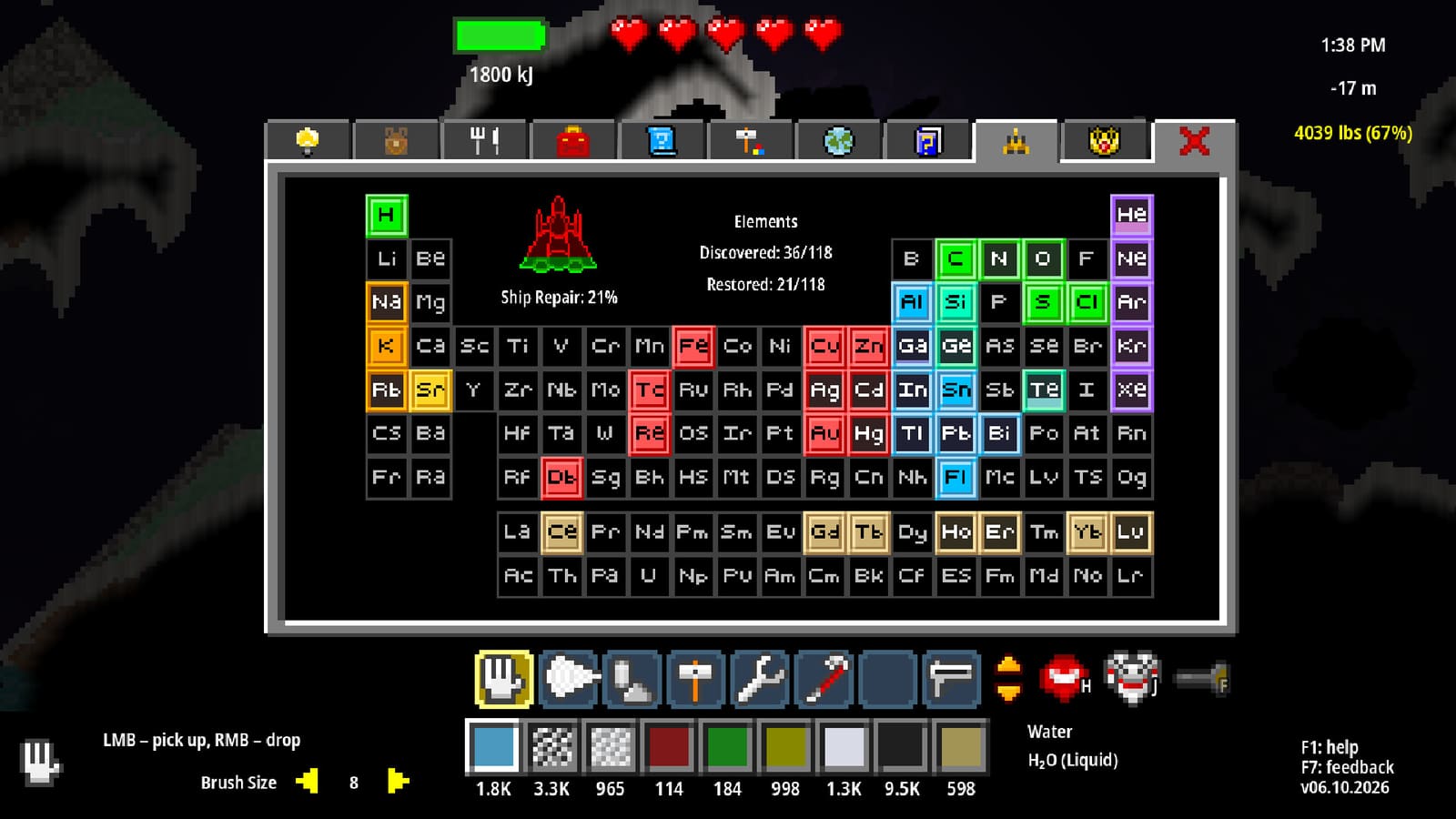
Core Keyboard Loop
- WASD — move.
- Mouse — aim and use the active tool.
- Left-Ctrl — material pipette / select material under cursor.
- Enter — interact with objects, machines, and prompts.
- F — flashlight toggle for caves and night work.
- F1 — Help System and Material Guide.
- F2 — editor-related access mentioned in logs and advanced workflows; treat as power-user territory.
- Settings — full key rebinding if defaults fight your layout.
The pipette is the unsung hero. Instead of scrolling a gigantic material list underground, hover a pixel and Left-Ctrl sample it. That habit speeds Materials work more than any fancy drill skin.
Controller Snapshot
- Left stick — move.
- Right stick — aim.
- RT — use tool.
- LT — hand pickup / drop.
- Bumpers — tool slots.
- D-pad — material slots.
- Y — hub.
- A — jump.
- X — interact.
- Right stick click — hover mode.
Hover mode helps fine placement on forges and wiring. Practice it in a safe surface sandbox before decorating a Buried City staircase. Details and tips live on Controller.
Why Controls Matter in a Chemistry Sandbox
Misclicks in a platformer cost a life. Misclicks in Atomcraft can flood a base with acid, ignite Charcoal against a wood depot, or place the wrong ore in a Steel melt. Material slots and pipette discipline are safety systems. Rehearse swaps before rare reactions from the Reactions Cheatsheet.
Hardness gates from Tools also interact with controls: the wrong tool slot selected feels like “the ore is broken” when you simply forgot to bumper over to the Steel drill.
Learning Path
- Read this hub.
- Drill WASD + mouse + Left-Ctrl on the surface (Keyboard).
- Memorize F, Enter, F1.
- If you use a gamepad, complete Controller drills.
- Build a personal cheat card from Hotkeys.
- Apply binds while following Walkthrough early chapters.
- Rebind anything that hurts your hands; save the profile.
Accessibility and Comfort
Rebinding is first-class in settings — use it. Move flashlight, interact, or pipette if your keyboard locale makes Left-Ctrl miserable. Controller users can lean on Steam Input layers if a physical layout is awkward, but learn the in-game defaults first so wiki advice maps cleanly.
Take breaks during long smelts. Holding aim over a forge for thirty minutes is a wrist workout. Hover mode and careful camera nudges reduce claw grip.
Cross-Links to Gameplay Systems
Controls are useless without goals:
- Materials — what you are pipetting.
- Builds — what you are placing.
- Map — where you are pointing the flashlight.
- Tools — which drill sits in which slot.
- Guides — guided practice missions.
- Walkthrough — staged objectives.
Hub Directory
| Page | Focus |
|---|---|
| Keyboard | WASD, mouse tools, Left-Ctrl, F keys |
| Controller | Sticks, triggers, bumpers, D-pad, hover |
| Hotkeys | Quick reference and rebinding advice |
Practice Routine (15 Minutes)
Spend five minutes pipetting random surface materials into slots. Spend five minutes swapping tool slots while carving a test staircase. Spend five minutes entering a dark hole with flashlight discipline and climbing out without panic jumps. That routine prevents ninety percent of early control-induced deaths.
When you later automate factories, good binds keep you calm during failures. Sensors and doors from Builds still need a human who can hit Enter and swap to the extinguisher tool without opening the wiki mid-fire.
Final Notes
Atomcraft defaults are sane. Master them before inventing exotic layouts. Left-Ctrl pipette, F1 Help, and material slots are the real “advanced tech” of the first ten hours. Return to this hub whenever a patch shuffles options or you switch between keyboard and controller mid-save.
Frequently Asked Questions
Quick answers tied to this page.
What does Left-Ctrl do in Atomcraft?
It pipettes or selects the material under your cursor, speeding material choice without long list scrolling.
How do I open the in-game help?
Press F1 to open the Help System and Material Guide. Pin materials to track sparkling deposits.
Can I rebind Atomcraft keys?
Yes. Use the settings menu to rebind keyboard controls to fit your layout and comfort.
What controller button uses the tool?
RT uses the active tool. LT handles hand pickup and drop; bumpers change tool slots.
What is right stick click on controller?
It toggles hover mode for finer aiming and placement while building or interacting carefully.