Atomcraft Keyboard Controls — WASD, Mouse, Left-Ctrl
Full Atomcraft keyboard and mouse controls: WASD movement, tool aim, Left-Ctrl material select, Enter, F flashlight, F1 help, and rebinding.
Atomcraft Keyboard Controls
Keyboard and mouse is the default precision setup for Atomcraft. You move with WASD, aim tools with the mouse, and manage materials with Left-Ctrl pipetting. This page expands the Controls hub with practical habits for digging, smelting, and factory wiring.
Pair these binds with Materials knowledge so you know what you are selecting, and with Builds so placement makes structural sense.
Movement and Camera
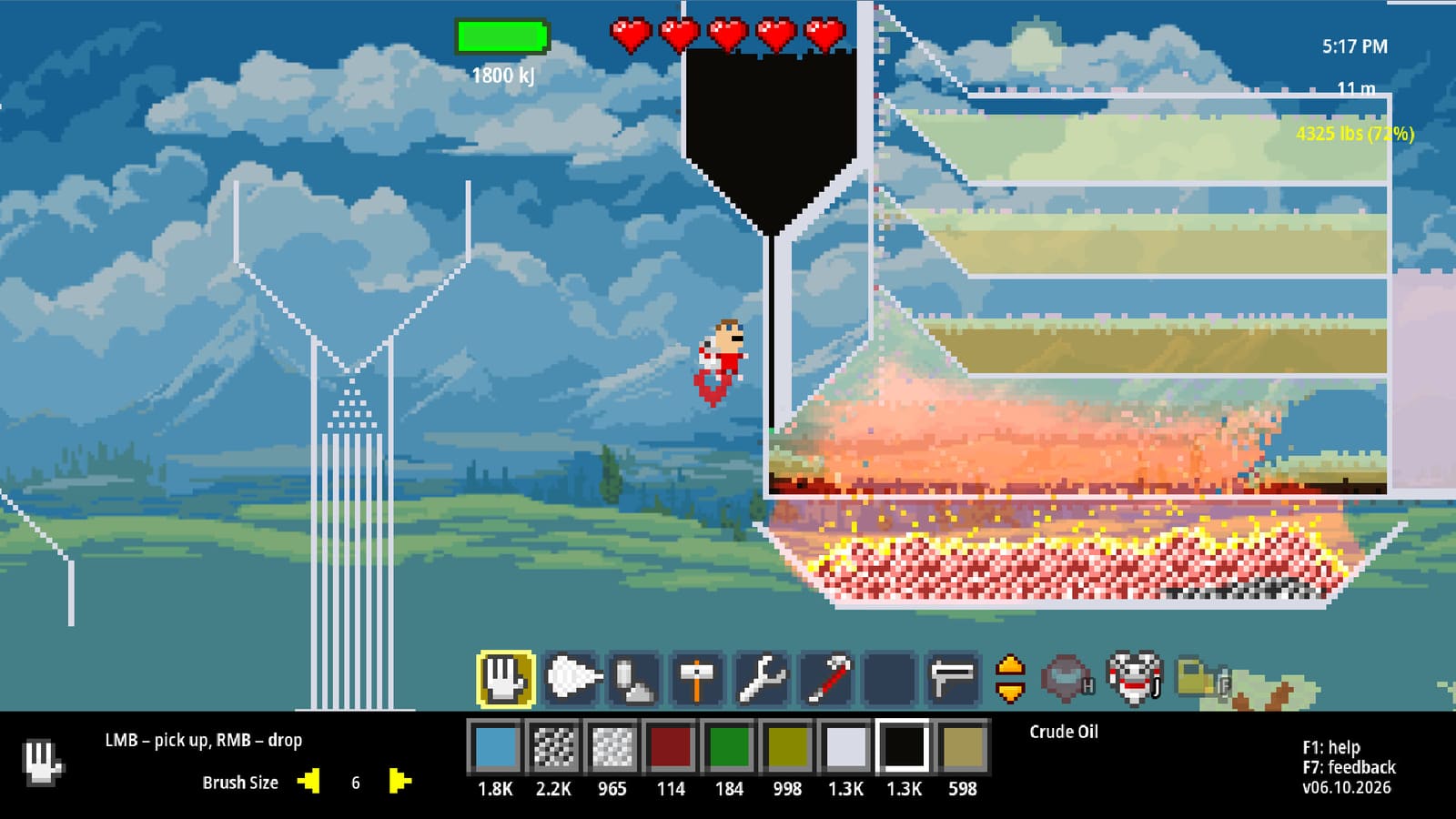
WASD walks your survivor through surface camps, limestone caves, and Buried City ruins. Combine short taps with mouse look to edge along forge lips without face-planting into molten Iron. Jump bindings (check your settings if Space feels wrong) help ledge work, but most chemistry failures are aim errors, not jump errors.
When tunnels branch, stop moving before you pipette. Sampling while strafing selects the wrong wall pixel and sends you crafting with dirt instead of Cuprite.
Mouse Tools
The mouse aims drills, placement ghosts, and interaction traces. Left and right buttons map to tool use patterns depending on the active item — learn the feel of dig versus place versus spray for each tool tier from Tools. Scroll or slot keys (see Hotkeys) should land on the Steel drill before you lean on limestone, not after.
Fine mouse motion matters for wiring and logic pixels in Builds. Lower polling anxiety by stabilizing your forearm; jittery placement creates short circuits you will blame on “bugs.”
Left-Ctrl Material Select
Left-Ctrl is the material pipette. Hover any world pixel — Wood, Cuprite, Sulfuric Acid, Charcoal — and sample it into your active material selection. This is faster and safer than browsing long lists while a melt cools.
Use pipette discipline during:
- Sorting ore piles before smelting (Ores and Smelting).
- Confirming acid identity before transport (Rare Elements).
- Matching wiring materials while automating (Builds).
If the wrong material is active, every click becomes pollution.
Enter to Interact
Enter interacts with machines, doors, ship contributions, and world prompts. Stand still, face the target, press Enter once, and wait for feedback. Mashing Enter while juggling inventory and chat-equivalent prompts causes double toggles — doors open and close, machines start and stop.
Ship element contributions for Research Points happen through interaction flows tied to Walkthrough goals. Have the correct element pixels ready before you approach the socket.
F Flashlight
F toggles the flashlight. Caves, night surface work, and Buried City corridors punish darkness. Bind F somewhere unmissable if your keyboard makes default F awkward. Light discipline also helps screenshot and video capture for community guides.
Do not confuse “I cannot find Cuprite” with “I cannot see Cuprite.” Sparkles from pinned materials in F1 Help still need photons.
F1 Help System
F1 opens the Help System and Material Guide. Pin materials to track sparkling deposits through fog of war. Unlock forge tips, ore tables, and cooking notes as you discover systems. F1 is not optional tutorial fluff; it is the official database your wiki reading should complement, not replace.
When a Guides page and F1 disagree after a patch, trust the live game and update your notes.
F2 Editor Mention
F2 appears in logs and advanced discussions around editor-style access. Treat it as a power-user or creative affordance rather than a required survival bind. If you experiment, do so on a copy of your save. Keyboard players who hit F2 by mistake should know how to exit cleanly via on-screen prompts or Esc patterns in settings.
Rebinding in Settings
Open settings and rebind any key that fights your locale, keyboard size, or accessibility needs. Common remaps:
- Move pipette off Left-Ctrl if it conflicts with OS habits.
- Move flashlight near movement keys for cave runners.
- Separate interact from jump-adjacent keys to avoid misclicks.
After rebinding, rewrite your personal card from Hotkeys so muscle memory matches reality. Controller players switching mid-save should re-read Controller.
Keyboard Practice Scenario
- Chop Wood; pipette Wood; place a platform.
- Find Pyrite; pipette; confirm Firestarter readiness (Early Game Materials).
- Enter a short mine with F light on; pin Cuprite in F1.
- Dig, haul, smelt; pipette Copper output.
- Interact with ship contribution if available (Walkthrough).
Repeat until pipette and tool swaps feel boring. Boring binds are safe binds.
Cross-Links
Keyboard Atomcraft mastery is calm cursor work. Move with WASD, think with F1, select with Left-Ctrl, and keep F ready when the cave goes black.
Frequently Asked Questions
Quick answers tied to this page.
What are the default movement keys?
WASD moves your character. Aim and tool use are handled with the mouse.
How do I select materials quickly on keyboard?
Hold Left-Ctrl to pipette the material under the cursor instead of scrolling long lists.
What does F do?
F toggles the flashlight for caves, night travel, and dark ruins.
What does F1 open?
The Help System and Material Guide, including pins for tracking deposits.
Can keyboard binds be changed?
Yes. Use the in-game settings menu to rebind keys, then update your personal hotkey notes.