Atomcraft Hotkeys Reference — Defaults and Rebinding Tips
Atomcraft hotkeys cheatsheet for keyboard F-keys, Left-Ctrl pipette, interact, flashlight, controller equivalents, and settings rebinding.
Atomcraft Hotkeys Reference
This page is the printable-minded Atomcraft hotkey sheet. Keep it beside Keyboard and Controller while you train. Defaults below assume a standard keyboard layout; always verify in settings after patches.
For gameplay context on what you are binding toward, see Materials, Builds, and Guides.
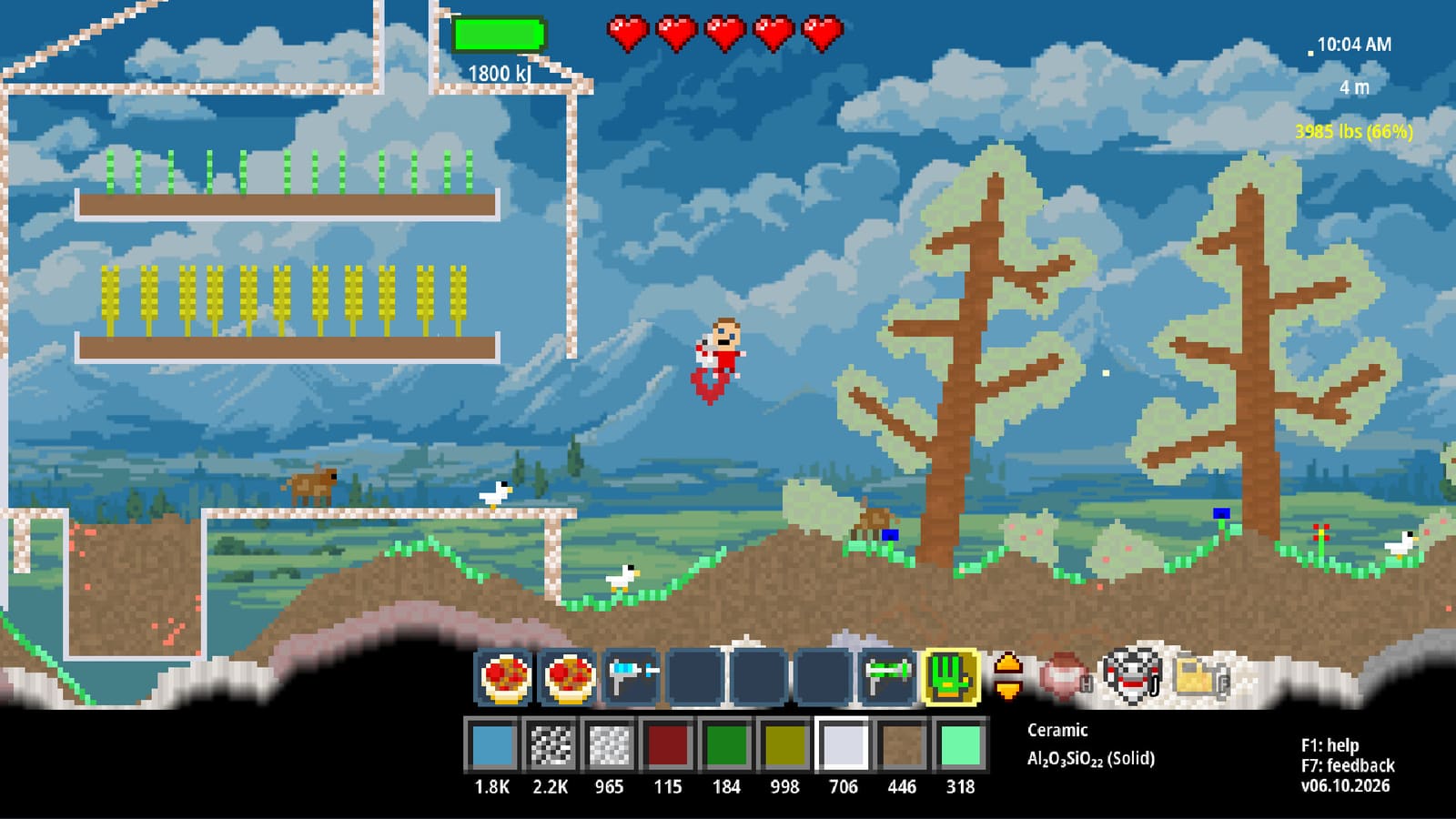
Keyboard Defaults (Core)
| Hotkey | Action |
|---|---|
| W A S D | Move |
| Mouse | Aim / tool cursor |
| Left-Ctrl | Material pipette / select |
| Enter | Interact |
| F | Flashlight toggle |
| F1 | Help System / Material Guide |
| F2 | Editor Mode (only after console command editor in recent patches) |
| L | Lock / unlock hovered material slot |
| Middle-click | Assign pinned recipe ingredient to selected slot |
| Settings menu | Rebind any of the above |
| Ctrl + Mousewheel | Scroll Material Belt / toolbar rows |
| Ctrl + Shift + Mousewheel | Scroll Material Belt / toolbar rows (alternate direction) |
| Ctrl-F | Highlight / focus search field |
| M | Jump to Map tab |
| \ (Backslash) | Unstuck — pop player out of stuck spaces |
| Alt + Mousewheel | Laser width (only when laser width upgrade unlocked; post-hotfix) |
Slot keys for tools and materials vary by personal rebinds — open settings and note your choices in the blank table at the end of this page.
Launch-window hotkeys worth learning
- L lock: protect Material Belt rows from accidental isotope dumps.
- Middle-click pins: speed Material Tracking workflows.
- Formula search modes: cycle Name / Formula / Both in inventories when isotope names blur.
- F2 caution: Editor Mode no longer toggles freely — you must enter the console command editor first.
Late July 2026 QoL
- \ (Backslash) unstuck: pops the player out of wedged terrain or tight machine geometry when normal movement fails.
- Settings → Control Bindings → Reset to Defaults: restores the keyboard layout after patches (July 2026).
- Alt + Mousewheel: adjusts laser width once the laser width upgrade is unlocked (post-hotfix).
Creative Mode note: Creative Mode grants free tool upgrades and disables damage. See Patch notes for launch-window and hotfix details.
Controller Defaults (Core)
| Input | Action |
|---|---|
| Left stick | Move |
| Right stick | Aim |
| Right stick click | Hover mode |
| RT | Use tool |
| LT | Hand pickup / drop |
| Bumpers | Tool slots |
| D-pad | Material slots |
| Y | Hub |
| A | Jump |
| X | Interact |
Priority Hotkeys to Muscle-Memorize
- Left-Ctrl — fastest path to correct materials underground.
- F1 — pins and official tooltips beat guessing.
- F — caves are dark; Map knowledge still needs light.
- Enter / X — machines and ship contributions.
- Tool swap — wrong hardness feels like a bug (Tools).
- Hover mode — precision builds and wiring.
If you only memorize six things, memorize those.
Rebinding Strategy
Rebind for comfort, not fashion. Process:
- Play one hour on defaults.
- List pains (pinky Ctrl cramps, F too far, Enter near misclick keys).
- Change one bind at a time in settings.
- Run a Walkthrough early task as a validation mission.
- Update this mental sheet.
Avoid rebinding so aggressively that community guides become unreadable. Keep Enter/interact and pipette conceptually consistent even if the physical keys move.
Hotkeys During Smelting
Before lighting Charcoal:
- Confirm tool slot = forge tool / not combat whim.
- Confirm material slot = intended ore or fuel.
- F1 pin the ore you still need to fetch.
- Flashlight F on if the forge bay is shadowed.
- Hands clear for Enter interactions on bellows-like machines or doors from Builds.
During Steel or Aluminum heats, pause before every RT/click equivalent. Hotkeys are decision points, not drum fills.
Hotkeys During Acid Work
Sulfuric Acid (Sulfur + Water) and HF (Sulfuric + Fluorite) punish wrong selections. Preload materials, announce the active slot, then move. If you use a controller, never travel with HF selected on the D-pad. Keyboard users should pipette fresh from the labeled basin immediately before pouring (Rare Elements).
Blank Personal Table
Copy into your notes:
| Action | My keyboard | My controller |
|---|---|---|
| Move | ||
| Aim | ||
| Pipette / material | ||
| Tool use | ||
| Interact | ||
| Flashlight | ||
| Help | ||
| Tool slot next | ||
| Material slot next | ||
| Hover |
Cross-Links
Hotkeys exist to make chemistry boringly reliable. When Left-Ctrl, F1, and tool swaps are automatic, your brain is free to remember that Steel is Carbon in molten Iron — not free to hunt the interact key while the melt freezes.
Frequently Asked Questions
Quick answers tied to this page.
What is the Atomcraft pipette hotkey?
Left-Ctrl on keyboard samples the material under the cursor. On controller, use preloaded D-pad material slots.
How do I toggle the flashlight?
Press F on keyboard by default. Confirm or rebind it in settings if needed.
Which key opens Help?
F1 opens the Help System and Material Guide for pins and official tips.
Is F2 required for normal play?
No. F2 relates to editor-style access mentioned in logs; survival play centers on WASD, tools, F1, and interact.
Where do I rebind hotkeys?
Use the in-game settings menu. Change one key at a time and retest with a short dig-and-smelt loop.
What controller input equals interact?
X interacts on controller, matching Enter on keyboard.